
 Google Play
Compare two videos side by side on Android
Compare two kept clips, then share a labelled JPEG or muted 720p video.
Short answer. ReplayR Pro compares two kept ReplayR videos on your phone. Choose a range in each clip, play them together at a shared speed and step through both on a shared timeline. Share the current frame pair as one JPEG, or export the selected ranges as a muted 1280×720 side-by-side MP4.
Use it to review a swing before and after a correction, compare two practice attempts, or explain a change in lifting technique. Comparison requires Pro; the rolling-buffer capture workflow is free to try. One Pro purchase includes every Pro feature, with no subscription or separate comparison purchase.
Capture both attempts first
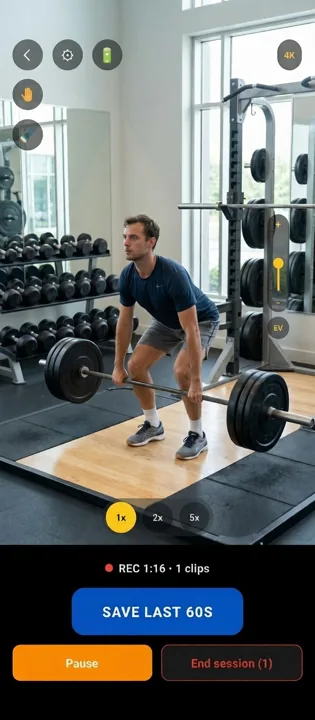
Capture both attempts first
Film from the same position, keep both attempts, then choose their useful ranges.
- 1. Mount the phone and start the buffer.
- 2. Save after the attempt and keep the clip.
- 3. Review a frame or compare two kept attempts in Pro.
What changes when you review two attempts together?
A single clip tells you what happened on one attempt. A pair helps you see whether a correction changed it. If a golfer worked on a quieter head position, place the earlier swing beside the later one and follow the same part of each motion. If a lifter changed the setup, compare the selected parts of the lift rather than the walk to the rack.
The point is one visible question, not two complete sessions competing for attention. Keep camera placement and the action itself comparable. Filming one attempt from the front and another from the side may reveal different things, but it cannot establish that a position improved from that pair alone. Decide the question before choosing your clips.
How to compare two kept ReplayR videos
1. Capture and keep both attempts
Set up the phone, start the rolling buffer and save after each attempt. Review the saved clips and choose Keep for the ones you want. The comparison picker works with kept ReplayR videos in the phone’s photo library. This guide does not promise a general importer for every video file on your phone or someone else’s cloud library.
2. Open the kept-video wall
When the photo library contains kept ReplayR videos, Home provides a shortcut to their day-grouped wall. Tapping one preview opens that clip for review. For comparison, use the visible Compare videos action to start guided selection. The wall also offers a button to open the phone’s Photos or Gallery app.
3. Select exactly two clips
Choose the first attempt and then the second. Selected thumbnails are marked A and B, and guidance shows which selection is needed next. Comparison requires exactly two videos and Pro. Long-press selection can also share up to four clips, but selecting a larger batch does not turn it into a four-pane comparison.
4. Set From and To for each clip
Choose the start and end of the useful range in both videos. The From and To controls show each boundary and accept typed timecodes. If the event begins later in one recording, adjust the ranges so that their beginnings represent the same part of the action. Compare the movement, not an unequal amount of preparation.
5. Review on the shared timeline
One Play action starts both videos at their selected From points. A shared elapsed timeline begins at zero and ends at the shorter selected duration. Paused frame controls step both clips together; a restart returns the pair to the beginning. This lets you return to the same relative point without restarting each player separately.
6. Choose the view and playback speed
Portrait stacks the previews vertically. Landscape provides fullscreen side-by-side playback with compact controls, retaining the selected ranges and position when the layout changes. Choose 0.1×, 0.25×, 0.5×, 1× or 2× for both clips. Use the speed that makes the correction visible rather than assuming the slowest option is always best.
Frame stepping and timing limits
The comparison controls include single-frame and ten-frame steps in both directions. Press and hold a −1, +1, −10 or +10 control to continue stepping. Use the ten-frame controls to reach the rough part of the action, then the single-frame controls to inspect it. The controls stay within the shared timeline’s bounds.
Frame-level review cannot recover a moment the camera did not record. At 30 captured frames per second, successive frames are roughly 33 milliseconds apart. Slowing playback gives you more viewing time, but does not create extra observations of the contact. Different frame rates or variable-frame-rate recordings can also limit exact correspondence between two videos.
ReplayR marks alignment as approximate when real frame timestamps are unavailable. Treat the view as a practical review aid, not a calibrated timing instrument or proof of a tiny performance difference. Read the mobile FPS calculator and single-clip frame analysis guide when capture detail matters.
What can I share from the comparison?
| Output | What it contains | Important limit |
|---|---|---|
| Paired JPEG | The current frame from both clips in one image, with optional labels | A still pair, not a moving annotation |
| Side-by-side MP4 | Both selected ranges in one 1280×720 video at the chosen speed | Muted; ends with the shorter range |
| Original kept clip | A single replay sent through its Share action | A separate workflow from comparison export |
Optional labels such as “Before” and “After” help a recipient understand which attempt is which. Check them before exporting, especially if you reverse the clip order. The video export is saved to Photos or Gallery before sharing, and an in-progress export can be cancelled. The paired JPEG is useful when only one position needs explanation.
Comparison video exports use the shared speed setting: 0.1×, 0.25×, 0.5×, 1× or 2×. Their output is a composed 720p video even if the original recordings have a higher resolution. Do not describe the result as a 4K comparison because one source was filmed in 4K. Both selected ranges loop in review when the shorter range ends; the exported video ends at that shared boundary.
The recipient can open an ordinary JPEG or MP4 without installing ReplayR. Select a transfer or messaging app that suits the recipient and check whether it compresses the video. ReplayR does not upload the originals automatically, but a destination you choose may upload, store or forward the file under its own rules.
Set up a fair before-and-after review
Keep the phone in the same position, at the same height and distance, for both attempts. Leave enough room for the complete movement and avoid changing the zoom between clips. An apparent improvement can come from a different camera angle rather than a real change in technique. If you must move the camera, explain that in the feedback instead of treating the clips as directly equivalent.
Match the task as well as the framing. Compare the same lift variation, similar tennis stroke or the same golf club and intended shot. Start with a single question: did the foot land in the same place, did the setup change, or was the racket prepared earlier? A short selected range keeps the athlete’s attention on that question.
For golf swing review, capture both attempts from the same down-the-line or face-on view. For weightlifting form checks, keep the bar and feet visible in both clips. For tennis and padel practice, include the preparation and recovery rather than isolating ball contact with no context. These are review examples, not automatic scoring modes.
Name the label around the actual change, such as “First attempt” and “After setup cue”, rather than declaring that a later attempt is better before reviewing it. When filming athletes, follow your club’s recording and sharing arrangements. A local comparison avoids an automatic cloud copy, but it does not replace consent or prevent the receiver from making another copy.
Use the right feedback tool for the correction
A paired frame can be enough to explain a visible position. A moving comparison helps show sequence and timing. If a line on one image makes the point more clearly, use annotations on a still frame instead. The annotation output is a flattened image; it is not drawing that follows an athlete through a moving video.
ReplayR Pro also lets you record coaching voiceover while watching a replay in the editor. Preview the commentary, re-record if needed and choose Confirm Changes to mix it into that edited clip. Sharing the confirmed edited video includes the voiceover. Microphone permission is required. The comparison MP4 itself remains muted, so do not expect it to carry the original clips’ sound or that separate editor commentary.
The athlete sharing guide explains single-clip sharing, confirmed edits and multi-clip selection. Choose the simplest output that explains the correction. Sending a whole batch with no indication of the relevant moment makes the athlete repeat the search you just finished.
Free capture, one Pro purchase for comparison
You can try ReplayR’s core capture workflow free on Android: a 45 or 90-second rolling buffer, replay lengths from 5 to 30 seconds, capture up to 480p, trimming, rotation and mirroring, plus supported remote controls. Wear OS control is included in Free. Bluetooth camera shutter and volume-button saving require Android. Hand-gesture save and the comparison tools require Pro.
One Pro purchase covers all Pro features; there is no separate comparison or voiceover purchase and no subscription. The app shows the current localized store price before purchase. Higher capture resolutions depend on the phone’s camera support. Pro also includes delayed preview, which requires compatible Android hardware and Seamless recording support; a purchase does not change hardware compatibility.
For normal replay recording, Pro offers buffers up to 12 minutes and saved clips up to 10 minutes. Experimental longer recording is a separate, constrained choice, not a requirement for comparison. Most technique comparisons benefit from two short useful ranges. Check the Free/Pro and compatibility answers before planning an unusual recording setup.
What this workflow does not replace
This guide describes two kept ReplayR clips, shared playback and composed image/video output. It does not promise an overlay of one athlete onto another, automatic angle measurements, moving-video telestration, AI technique scoring, cloud team libraries or athlete feedback threads. Those are separate capabilities and may need a different tool.
Review ReplayR vs OnForm if your work depends on client accounts or hosted collaboration. A normal MP4 can be exported for another workflow when necessary. ReplayR’s public app is Android with a Wear OS companion; iOS is planned. Sharing an MP4 with an iPhone recipient is different from offering an iPhone capture app.
FAQ
Can I compare any two videos on my Android phone?
This workflow selects two kept ReplayR videos found in the phone’s photo library. It does not promise arbitrary video import, a cloud-library connection or more than two comparison panes.
Does comparison require a subscription?
No. Comparison is included in ReplayR Pro, a one-time purchase covering all Pro features. Free includes the core replay capture workflow but not comparison.
Can I export the comparison in slow motion?
Yes. The side-by-side MP4 uses the selected comparison speed: 0.1×, 0.25×, 0.5×, 1× or 2×. It is muted, 1280×720, and ends with the shorter selected range.
Can I add sound or voiceover to the comparison MP4?
The comparison export is muted. Pro voiceover is a separate editor workflow on a replay: record commentary, preview and confirm the edit, then share that edited clip.
Is the timing always frame-exact?
No. ReplayR uses frame information where available and marks alignment as approximate when real frame timestamps are unavailable. Capture quality and frame rate still limit what you can resolve.
Does the athlete need ReplayR to open the result?
No. A paired JPEG or side-by-side MP4 is an ordinary image or video file. The receiver can use a compatible viewer without a ReplayR account or app.